

Renee’s Homescreen Makeover: LauncherPro

I recently decided to overhaul my Droid’s main desktop interface, and briefly tried out various homescreen-replacement apps, such as Home++. Out of the apps I tried, the one that felt most natural for me to switch to was Launcher Pro Beta, which allows me to add additional homescreens, has a homescreen preview feature, and provides a convenient (and expandable) app launcher strip at the bottom of the screen. More about these features below.
In addition to replacing my homescreen, I added on some apps that provide additional features: “Apps Organizer” to give me custom folder organization using tags, “QuickDesk” to give me a “ghost homescreen” with the information and widgets I need most accessible, and an app my friend developed called “Wallpaper Sync Beta” to synchronize my phone’s background image with my PC’s. I’ll review each of these apps one at a time over the next couple weeks, starting with LauncherPro today.
So the major features of LauncherPro are:
-
Additional Homescreens
You can have up to 7 homescreens with LauncherPro. I currently have 4: two for folders and contact shortcuts, one with several widgets and a couple webpage bookmarks, and 1 with the widgets that don’t fit on my other homescreens. (Select number of homescreens using Menu > Preferences > Homescreen Settings)
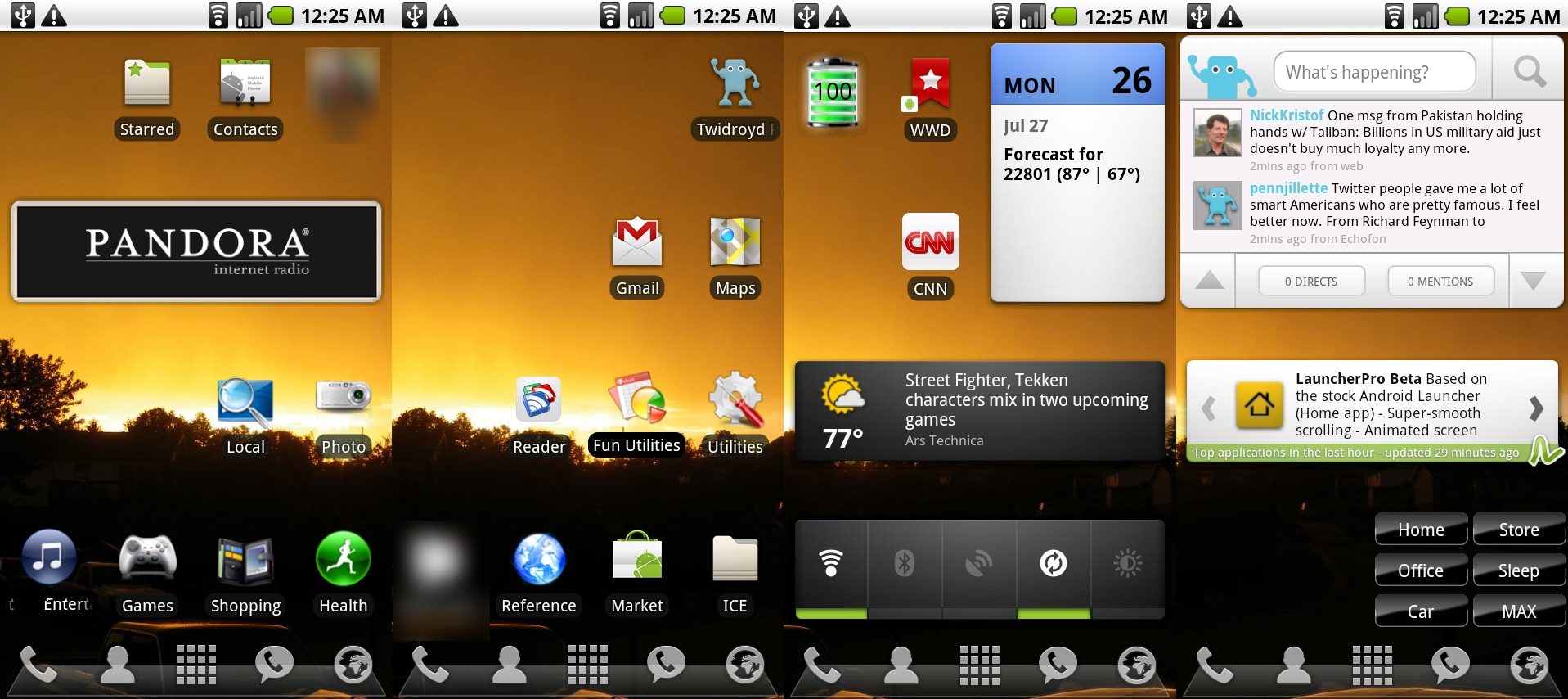
Just by chance, LauncherPro Beta was the featured app in the AppBrain widget when I took this screenshot! -
Homescreen Previews
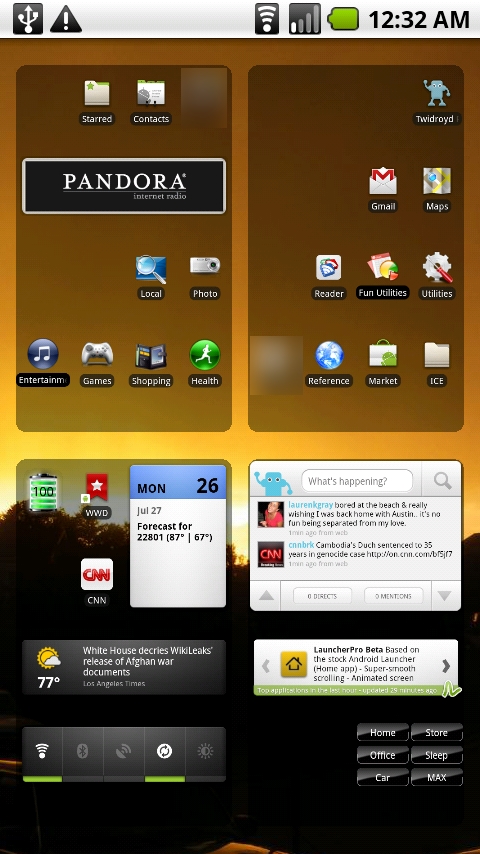
When you want to jump to another homescreen, you can either slide left or right as usual, or double-click the Home button. When you single-click the home button, it takes you to the homescreen you set as your Default. Double-click gives you a handy preview of all of your screens, and clicking on any preview will take you to that screen. I don’t use this feature much since I only have 4 homescreens, but I can imagine it would be easier than sliding back and forth if you had 7! (Select Default homescreen using Homescreen Settings, and Home Key action using Behavior Settings)
-
Scrollable App Launcher Dock
Of course a key feature of LauncherPro is the launcher strip, or “dock”, which can be found at the bottom of the screen. Before I downloaded LauncherPro, I assumed this would be a static strip of buttons, but it’s not. Not only can you select which apps you want shortcuts for, but you can choose custom icons, customize the color and background of the dock, and if you click and drag the strip to the left, there’s room for more shortcuts! It looks like you can have up to 15 icons (in 3 groups of 5) on the dock. I currently have 8. There are built-in styled icons to select from for many major apps to get a seamless look, too.

You can see that my main dock has styled links for the Phone, Contacts, App Drawer, Google Voice, and Web Browser. When I slide it to the left, I have unstyled icons to launch Apps Organizer, Alarm, and cVolume controls.
Dock behavior options can be set using the Dock Settings. You can also opt for some notifications (like new SMS) to appear in the dock, but I don’t currently use that functionality. To add new apps or functions to the dock, you simply scroll to an empty space and click the “+”, then choose the shortcut you want to add. You will then be presented with icon options. The dock background can be set in Appearance Settings.
-
App Drawer
The last major feature I’ll cover here is the LauncherPro App Drawer. There is a 3D version which I don’t use, but I like the slide-out and scrolling of the new 2D app drawer. My favorite feature, though, is that it holds your place: when you open the app drawer and scroll to a certain section, it opens to the same spot when you open the drawer again. This is very handy when you have a lot of apps! You can also customize the number of columns in the app drawer and how fast it opens and closes in the Advanced Settings.
There are other small features I keep discovering – so many that I won’t cover them all in one post! Just to give you a taste, a few more things you can do with LauncherPro are: modify memory usage, set icon highlight options, and back up all of your settings to your memory card.
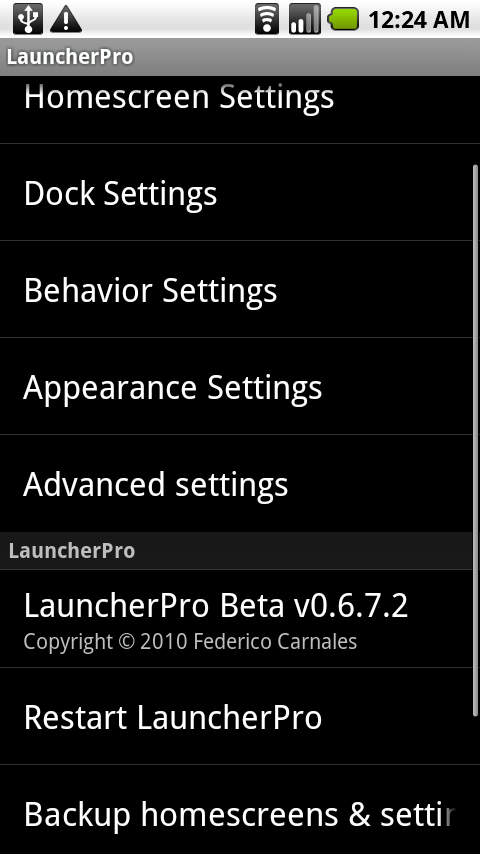
Overall, LauncherPro has so many useful options, I doubt many people use all of them! It is customizable enough to be what you need it to be, but simple enough to be useful without being overwhelming. Once you get it all set up the way you like it, it is very intuitive to use, and I won’t ever go back to the stock homescreen functionality!
There is also a “Plus” paid version of LauncherPro which I haven’t tried yet, but I plan to – both because this app is so useful and well-implemented, I want to support the developer by spending a few bucks – and because the additional features look great! (Think: scrolling contact and bookmark widgets!) You can learn more about LauncherPro+ on the LauncherPro website.
Do you use LauncherPro or any other homescreen replacement app? Tell us in the comments!
UPDATE: A site has been launched where you can get images for the LauncherPro dock and icons: http://launcherpro.droidicon.com
Use this link from your phone to open LauncherPro in the Android Market
or scan the QR barcode.



Load up your phone with MP3s from Amazon!

I love Launcher Pro! I’ve tried other home screen replacements but keep coming back to this app! I enjoy the customization available and the appearance on my screen. It saves valuable real estate.
I’m going to try out Zeam Launcher again this week because they offer 5 icons across the screen instead of 4 like Launcher Pro or ADWLauncher. I need everything I can get!
You can do 5 icon rows down in LauncherPro, too (in “Advanced Settings”), but the sub-text for the setting seems to discourage it and it messes up in landscape, so I think they have some work to do on that feature. 🙂
i just raved about launcher pro nonstop to a few friends with new droids (one incredible and one x!). hopefully they go for it! my only regret is letting go of a few sense widgets that i can’t seem to approximate via the market, unfortunately (snagged the beautiful widget clock, but that’s about it).
i love looking at other people’s home screens. it’s like seeing their bedroom decor or something! what are you getting screenshots with these days? i think my ‘shootme’ app was recently killed, but i’m no positive.
launcherpro’s biggest selling point for me was a customizable dock to get rid of sense’s dock, which was totally useless for my needs. now i’ve got 15 little custom icons (made with an adorable set of tiny green androids) to do my bidding.
Thanks for the additional info.
I’m still using the SDK to take screenshots: http://www.womenwithdroids.com/2010/02/how-to-take-screenshots/
I love your idea of using the little droid icons for the dock! Cute! 🙂
*not positive.
not illiterate either!
There is a really good website/app that provides lots of icons that match the style of LauncherPro’s default dock icons. They also have a lot of nice dock backgrounds too.
The site is http://launcherpro.droidicon.com and the app is called LauncherPro Icons (http://bit.ly/LPiOnAppBrain)
I updated the post yesterday to include that site – but I didn’t know about the app. Thanks for the info!
Doh! Sorry. I didn’t see your update.
I have to admit I have a vested interest because my husband built the site and the app. I’m super excited about it. One of the contributing artists is currently working on some more “feminine” dock backgrounds.
Very cool! Congrats to you and him.
Please post here or tweet @droidwomen when the new dock backgrounds are up and I’ll go take a look!
I love LauncherPro and just recently purchased LauncherPro+ which is awesome with the people and bookmark widgets & now they have added a calendar widget. I am still finding new things about the program everyday and will never use the “standard” home screen again. Now that I have downloaded Froyo, Launcherpro works even better…I couldn’t be happier. I also recommend Beautiful widgets for an even better home screen experience!
I have tried a few different launchers and always come back to LPP. I have it on both my D1 and DX. Its a must have!
Please teach the name of dock of LauncherPro that you are using.
The dock is the default that comes with Launcher Pro.
I plan to do another post with more details of some new features the dock has now!
[…] Renee’s Homescreen Makeover: Launcher Pro – There are plenty of homescreen replacement and launcher apps out there, but the […]
[…] as long-time readers of this blog know already, I’m a fan of the highly-rated LauncherPro and wrote about its basic features when I re-did my homescreen last year. (If you aren’t familiar with LauncherPro, you should […]
How do you put 15 different shortcuts onto your launcher pro dock. I have it installed on my android 2.1 phone and I cannot figure out how to get the different 15 shortcuts onto the dock. I’d like to keep a clean screen and not a cluttered one by putting my most used shortcuts onto the dock.
Hi Amber! I was able to get additional space in the dock by going to Menu > Preferences > Dock Settings > Number of Docks
Then, you can add icons by long-pressing on a “plus” space on the dock, and move between docks by swiping left or right on the dock itself.
Hope that helps!