

Renee’s Homescreen Makeover: Apps Organizer

This is Part 3 of the “Renee’s Homescreen Makeover” Series. Click here for Part 2, “Wallpaper Sync”, if you missed it.
The next app that I used to improve my phone’s home interface is Apps Organizer. Apps Organizer allows you to add tags to your apps, then add icons to your homescreen that open a “folder” of apps with a tag.
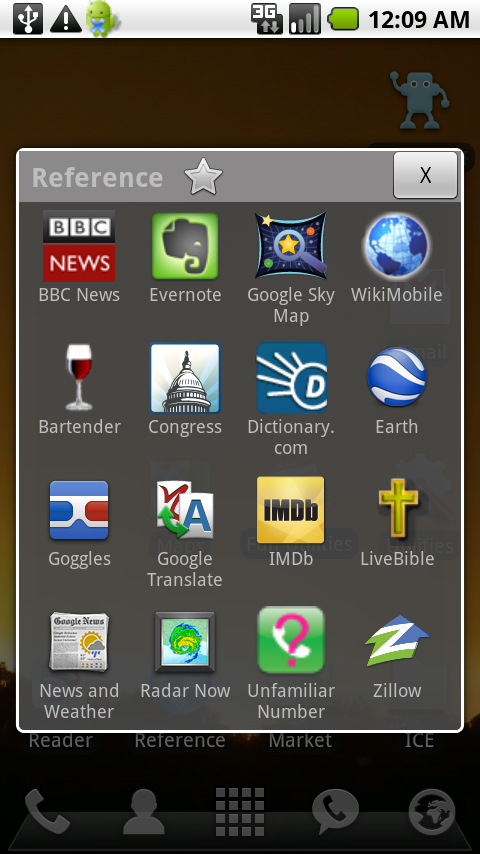
I really disliked the built-in folder system on Android — how you had to drag apps into the folders, and how you couldn’t easily customize the folder icons. Apps Organizer solved all of the problems I had with the standard folder system, and more.
When you open Apps Organizer, you see a list of all of your apps. You can long-press on an app name to open, uninstall, or label the app, or you can just click it to add labels.
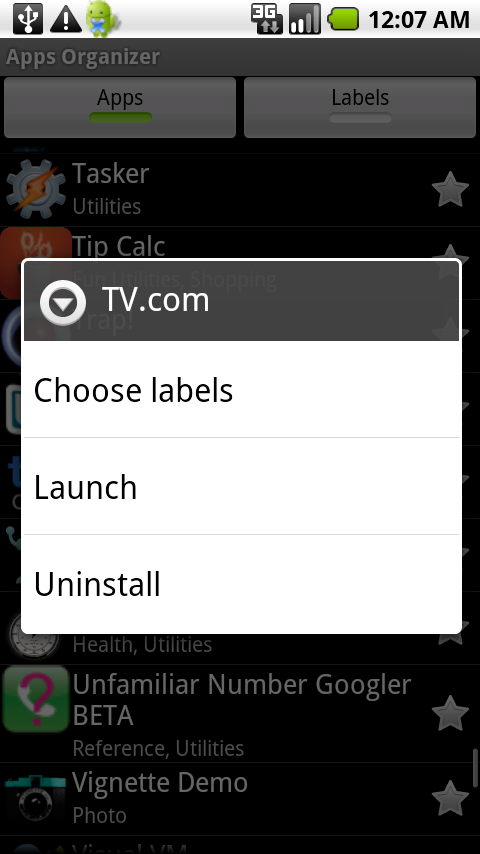
Labels are like tags, and allow you to add the app to one or several “tag folders”. You simply check off the labels you want for the app, or press the “+” button to create a new label.
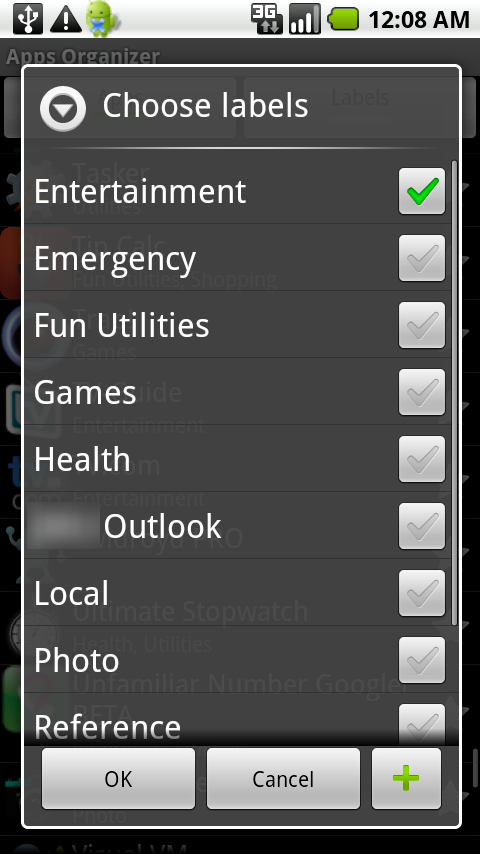
Adding labels is a little time-consuming at first if you have a lot of apps like I do, but the process wasn’t tedious at all, it was very intuitive and quick. You can add apps to labels, or labels to apps.
You can also click the star next to an app’s name on the Apps Organizer Apps tab to add it to your “starred” apps. What this does is allow you to quickly narrow down the apps in a folder on your homescreen by clicking on the star at the top of the folder to show only the starred apps with that label. In addition, starred apps show up sorted first in tag folders, which is handy when you have a lot of apps with the same tag/label. You can also add a shortcut to your desktop to view all starred apps, regardless of label.
If you click on the “Labels” tab at the top of the Apps Organizer screen, then click on a label in the list, you’ll get several options for modifying it: Rename, Delete, Change Icon, Select Apps, and Add to Home. Below is a label I created for my movie and music apps, called “Entertainment”.
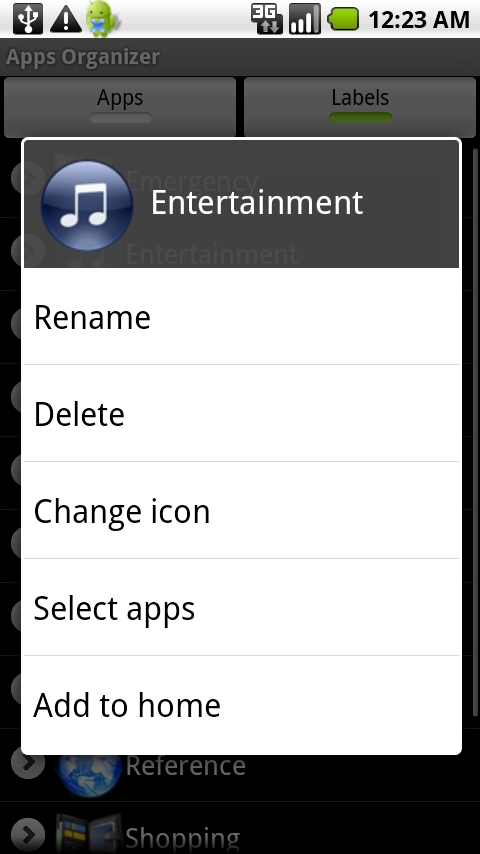
You can add a “folder” of apps to your homescreen from this menu, or long-press on your homescreen and choose “Shortcuts > Apps Organizer”. You can also customize the icon for this folder/label, choosing from a set of built-in icons, or from another icon set on your phone. Also, if you give a folder/label a long name, it will scroll below the icon so you can read it instead of getting cut off like it does on the standard homescreen.
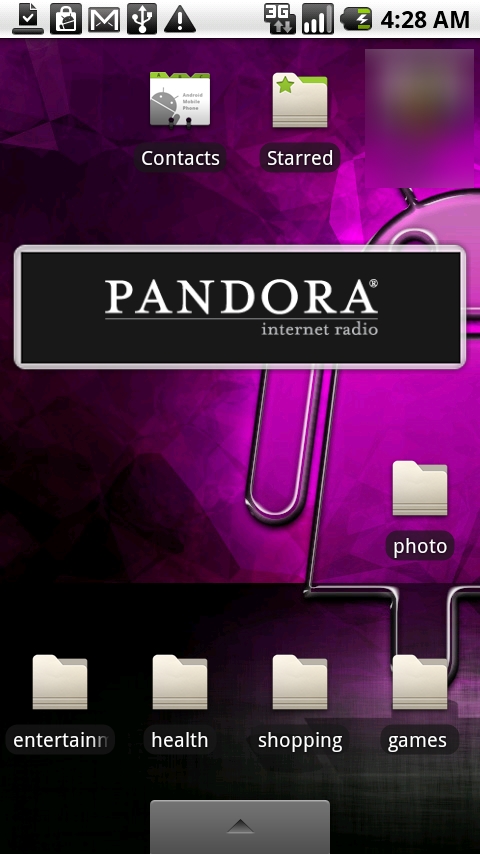 Before - Standard Folders |
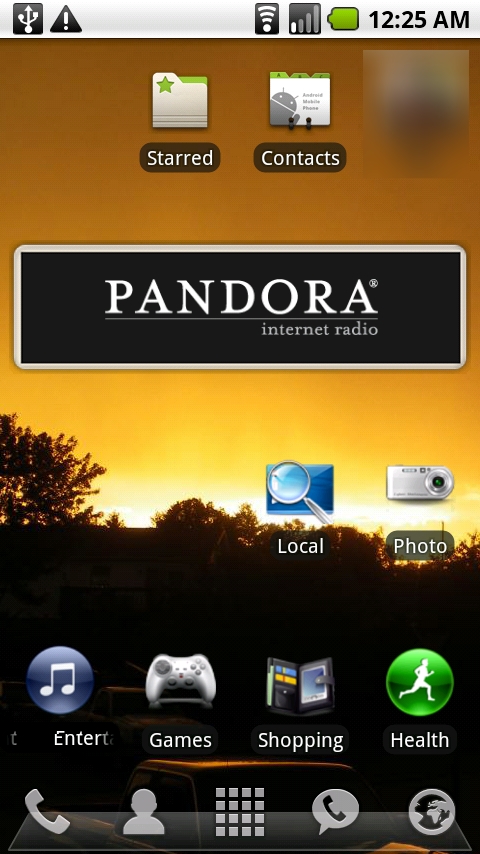 After - Label Shortcuts |
The only downside I’ve found for Apps Organizer folders is that you can’t add other shortcuts to them, like contacts or lists, which you can do with the “old-school” folders. It does what is says, which is organize apps, but I do wish I could add more than apps to their great organizational system!
Overall, Apps Organizer is a great app and I love the “label” system. It is so much less frustrating to use than the standard Android folder system, and I highly recommend that you try it.
QR Code



Cell Phones & Accessories on Amazon

My only complain with Apps Organizer is that the widgets take a bit to load when I switch between screens!
Try Smart Shortcuts on the market…no widgets, same principal
I just got an app called Circle Launcher. Its a pretty cool app that lets you put shortcuts in a customizable widget.
So far I’m loving it.
That’s one I’ve been meaning to try – glad you like it! Sounds cool!