

Renee’s Homescreen Makeover: Wallpaper Sync

This is Part 2 of the “Renee’s Homescreen Makeover” Series. Click here for Part 1, “LauncherPro”, if you missed it.
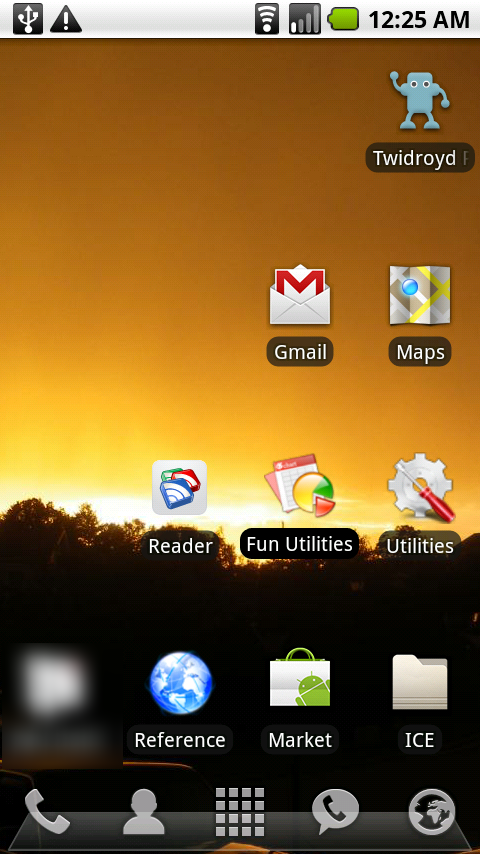
So the 2nd thing I did to overhaul my Droid’s homescreen was to change the wallpaper. An app my friend developed helped me do more than simply change my wallpaper, though. Wallpaper Sync Beta allowed me to synchronize my phone’s homescreen wallpaper with my PC’s desktop background!
 |
 |
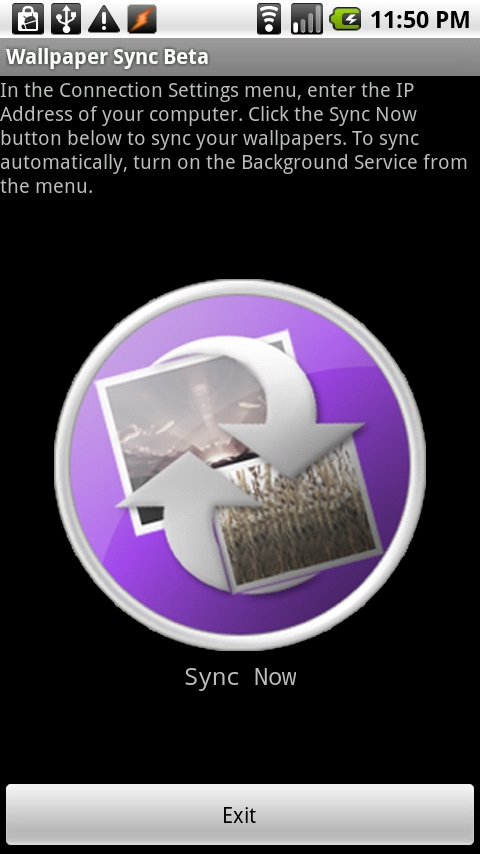
You can use the Wallpaper Sync Beta to synchronize the wallpapers by clicking on the big “Sync” button, or you can set it up to automatically rotate and sync both at a specific time interval. I’ll show you how to set it up both ways.
Basic Setup
- Search for “Wallpaper Sync” in the Android Market (or click on this link if you’re reading this from your phone), download it, and install it.
- Download the PC “server” program at my friend’s website: http://noevilconcepts.com and install it on your computer.
- Follow the instructions on the screen to connect your phone to the PC server. If you ever need to change your connection settings after the initial setup, you can right-click on the program’s icon in your PC’s system tray and choose “Show Me My IP” to get your computer’s IP address, then enter it into the Menu > Connection Settings pop-up in the phone app.
Now the app is all set up and ready to sync!
Sychronize On Click
This is how I have mine set up, so I can click when I want to send my PC background to my phone:
- First, set your PC’s desktop background to the image you want to sync. Make sure you have followed the steps above so both the phone and the PC are ready, you’re in your home wifi network, and your phone’s wifi is on.
- Open the app on your phone and press the big purple circle that says “Sync Now”.
- Close the app and admire your new homescreen wallpaper. Wasn’t that easy? 🙂
Rotate & Synchronize Automatically
I don’t change my wallpapers often, but if you do and you want your phone to auto-sync to match your PC background, follow these steps. (Note, you don’t have to auto-rotate in order to auto-sync.)
- To set your background to auto-rotate through a folder of images, right-click on the program’s icon in your PC system tray and choose “Wallpaper Changer Settings”. Choose the folder of images and how often you want your background to change. Click “Save Settings”, then “Enable Changer”.
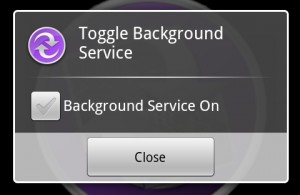
- To auto-sync, on your phone, open the app, go into Menu > Toggle Background Service, and check the box to turn the background service on.
- Wait for your PC background to change, then within about 10 seconds, your phone background will change to match! Fun, huh?
 |
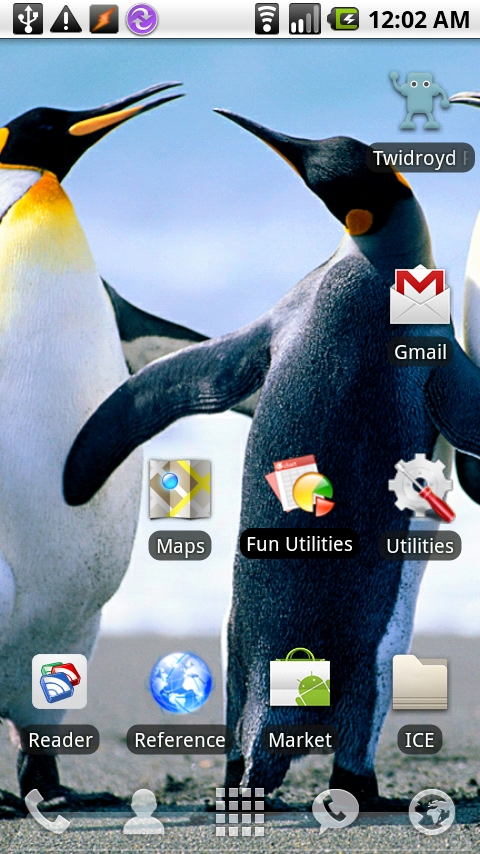 |
I think it’s a really creative and useful app, and I use it because it’s even easier than transferring an image file to my phone and setting the wallpaper on it the traditional way.
Feel free to put any feedback or questions about Wallpaper Sync in the comments!
Wallpaper Sync Android Market Link
QR Code



Cell Phones & Accessories on Amazon

[…] This is Part 3 of the “Renee’s Homescreen Makeover” Series. Click here for Part 2, “Wallpaper Sync”, if you missed it. […]
The link to the Android Market doesn’t work. Please help!
Sorry, this was written before there was an online market, so that link would take you to the market on your phone. I’ll go look for it – thanks for asking!
Just talked to my friend and he said he was no longer supporting it, so he took it down from the Android Market – sorry it’s not available anymore!
This is sad it doesn’t exist anymore 🙁 I really want this app. I’d even pay for it.