

How-To: Transfer Photos & Files

Note – this file-transfer procedure is for Windows, I haven’t tried it on a Mac.
I realized I had never backed up the photos on my phone, so I plugged my Droid into my computer using the combo USB/charger cable that came with it.
I had already installed the drivers, but the phone didn’t show up in ‘My Computer’ for me to browse when I plugged in the USB. I searched online and found out what you need to do:
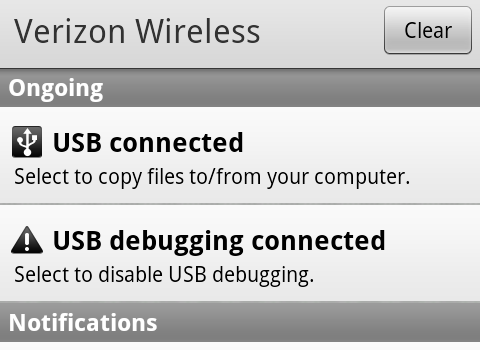
- Pull down the notifications menu and click “USB Connected – Select to copy files to/from your computer”.
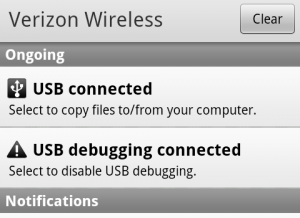
- Click “Mount”.
- If it AutoPlays, click “Open Folder to View Files”. Otherwise, browse ‘My Computer’ and open up the “Removable Disk” drive.
- Now you can transfer files back and forth to your Droid’s SD Card using Windows Explorer. The folder with the camera photos is called “DCIM” and the Subfolder is called “Camera”. Mine didn’t show up at first, but I disconnected and reconnected and then it appeared.
Note that when you transfer files to the Droid, you can’t browse them from the phone while it is mounted. I got scared when my camera gallery suddenly appeared empty, but they photos were all still on the phone once I disconnected! I guess the phone and the computer can’t both be accessing the SD Card simultaneously.
To disconnect:
- Close any programs that are accessing the phone’s files, including Windows Explorer.
- Eject the Motorola A855 using the PC taskbar’s “Safely Remove Hardware” option, like you would any USB drive.
- Pull down the Droid’s notifications menu and click “Turn off USB Storage”, then “Turn Off”.
- Now you can unplug the USB cable.
Please let us know in the comments whether our how-to posts are helpful to you, and ask any questions you’d like us to try to answer in the future!




Thank you for the information. I tried on my own last night, and couldn’t figure this out. I had it working in less than 2 mins after reading your information. What a timesaver!!
Great, glad the post was useful! 🙂
[…] Tips & Tricks One of my favorite sections of the WWD website is the Tips & Tricks section. I’ve actually referred my own mother to this website to explore before asking me questions – hey let’s face it, I don’t have the time to answer ALL of her questions, especially when there are great sites like this help. One post in particular that I found useful for reference was their How-To on Transferring files and photos. […]