

How to take Screenshots

You have probably already seen posts with screenshots of my Droid’s home screens and apps, and a few people have asked how I do that. I learned how to from knowyourcell.com and I’ll reproduce the steps here.
Now, let me first tell you that this is not a simple app or quick procedure that will have you snapping screen shots 30 seconds from now. Once you get it all set up, it’s easy to capture images, but the setup is a little laborious because you have to install the Android SDK, or Software Development Kit. That’s what programmers use to develop & test apps. Don’t worry, though, you don’t have to write any code to use the screenshot functionality!
*Note: A commenter said he was able to use the debug monitor program included in the SDK package to take screenshots without actually installing the SDK. So if you don’t plan to use the SDK for development, you may be able to skip steps 5-7 and still capture images!
- First, download the SDK starter kit here and unzip it: http://developer.android.com/sdk/index.html
- Follow these instructions to update or install the Droid USB drivers: http://developer.android.com/sdk/win-usb.html#WinUsbDriver (if you’re updating instead of installing for the first time, note that mine said “Android Phone” instead of “ADB Driver” in the Device Manager as specified in those instructions)
- Download and install the Java Development Kit (JDK) here: http://java.sun.com/javase/downloads/index.jsp
- Next, plug your Droid into your computer with the USB cable and touch your Menu button and select “Settings”. Select “Applications”, then “Development”, then check “USB debugging”.
- *Then, go into the folder you unzipped in the first step and run “SDK Setup.exe”.
- *Click “Available Packages” in the left sidebar of the application that opens, then click the “Refresh” button in the lower right side of the application to get the latest SDK packages.
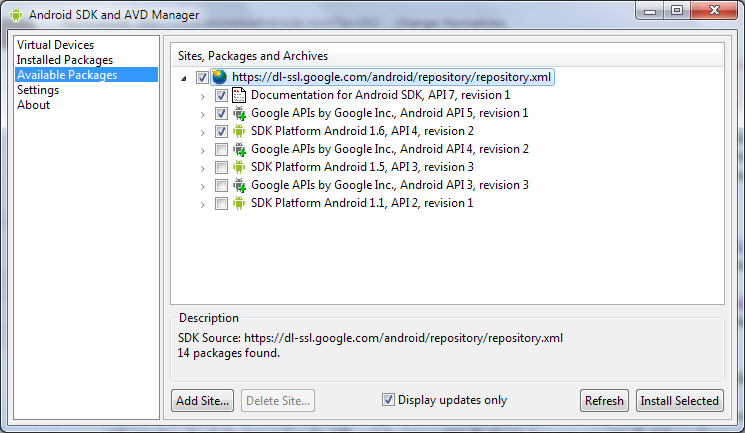
- *Check the checkbox next to the URL in the right side of the window to get a list of available APIs. I believe you only need to check the latest Google API and the latest SDK Platform, but you can get all of them if you want to develop for the Droid later. I went ahead and got the documentation, too. Click “Install Selected” and accept each package to install everything you selected.
- You can relax now because all of the tedious stuff is done and you have everything you need downloaded and installed on your computer, so the rest of the steps are for actually taking screenshots!
- Go back to the Android SDK folder you unzipped in step 1. Open the “Tools” folder, then double-click to run DDMS.BAT. (You might want to create a shortcut to this file on your Windows Desktop since you’ll need it each time you’re going to take a screenshot.) Two windows will open, a black DOS window, then a Windows window. You won’t need to do anything in the DOS window, but leave it open while you’re doing the rest of the steps.

- Select the device in the list in the Dalvik Debug Monitor window, then open the “Device” menu and select “Screen Capture”
- You’ll see your Droid’s screen – yay! Navigate to what you want to capture onto your Droid’s screen, then click “Refresh” in the Screen Capture window to grab it.
- Click Save to save it, or Copy to paste it into your favorite image editor.
Whew! A lot of work to do something simple, but from now on, you’ll only have to do steps 9-12 to capture screen shots on your phone. It’s fun!
Please let me know if you try these steps because I reproduced them here after I actually did them – let me know how the process went and whether I can make anything clearer. Also, I’m assuming the steps are exactly the same on the Motorola Milestone since it’s the same hardware, but if you have one and try it, please comment here! Thanks!




Having to download and install 1 GB worth of desktop software, hook the phone to a desktop system via USB, and work with reduced functionality (e.g. no access to SD card) to take screenshots in user mode on an Android device, is just insane.
Not being able to take screenshots in user mode is a major Android design blunder. It is often claimed that this is due to security concerns, i.e. that some applications may get sensitive information by reading the screen.
But iPhone can take screenshots in user mode. Shouldn’t iPhone be vulnerable to such attacks? Did this actually happen?
I don’t know what the reason is for not allowing Android apps to access screen capture functionality, but I have heard if you “root” your phone, there are some apps you can install to do screenshots from the phone.
There are indeed easy to use Android apps for taking screenshots on rooted phones. But many users — including me — prefer not to root their device.
These instructions worked just fine for my Mac as well. I was able to skip 2-3, 5-8. I merely downloaded the SDK, fired up DDMS, enabled debugging on the phone and started capturing photos.
Thanks for the tips!
Great, good to know. Thanks, Josh!
These directions came in handy. The first time, I screwed up, but I was able to get it working on the second try.
They have to come out with an easier way!! They make it so easy on other smartphones, why does it have to be so difficult on the Droid?
I just downloaded an app yesterday called Home++. I haven’t configured and used it much yet (when I do, I’ll review it here) but it can take screenshots (at least of the homescreen, I haven’t tried it outside of Home++ screens).
Is the Home++ still avalible? I’ve looked everywhere with no luck finding it. 🙁
It is on AppBrain but it’s possible it won’t show up in your market if it doesn’t support your OS. Hasn’t been updated since August and is still called a “Beta”:
http://www.appbrain.com/app/home-beta/mobi.intuitit.android.x.launcher
Thank you!! I found it. I was putting a space between the +’s signs. lol
Yeah, you’d think Google (search engine king) would make searching the market better and easier and not get tripped up by these things!
I cannot fathom why I need to download my phone’s device driver, the Java SDK, the Android SDK and then install packages in the Android SDK all just to take some screenshots. I’m but one non-developer woman, peeps!
Unfortunately, I literally won’t have use for any of the SDKs again.
Thanks for the step-by-step review. There’s absolutely no way I would have gotten through without this info!
Glad you were able to get through all of the steps successfully, and yeah this process is a bit on the complicated side, but produces great screenshots!
Commenter Josh above figured out that you can skip steps 5-7 and everything you need will still be installed.
Since we wrote this, some apps have been developed that do screenshots – at least screenshots of homescreens. I haven’t used any of them, though!
Rooting your phone has never been easier or safer. Google ‘z4root’ and download the .apk file. Place the .apk file on your phone and install it. When you open the app there are only two buttons…permanent root or temp root. Pick permanent. Youre done lol Btw in my case, i had to restart my phone, then go back into the app to root. I rooted my friends phone and it worked on the first try. Either way…incredibly easy.
[…] How to take Screenshots – This somewhat complex how-to must’ve gained us a lot of traffic from search engines […]